 erkemoz
Erkemoz - Game Mods User Guide
Shows step by step how to install, update and remove patches, mods and cheats.
Installing and first start
- Download the installer with the download button on this page and run it.
- If Windows shows "Windows protected your PC" (SmartScreen), click "More info" → "Run anyway". This warning appears because the program isn't signed with a paid certificate yet.
- When setup finishes, open the program from the Start menu.
- Change the interface language from the “Language” menu in the top bar; there are 8 languages.
- The program checks for new versions by itself; when one is out, it asks and installs it in one click.
Library: games and packages
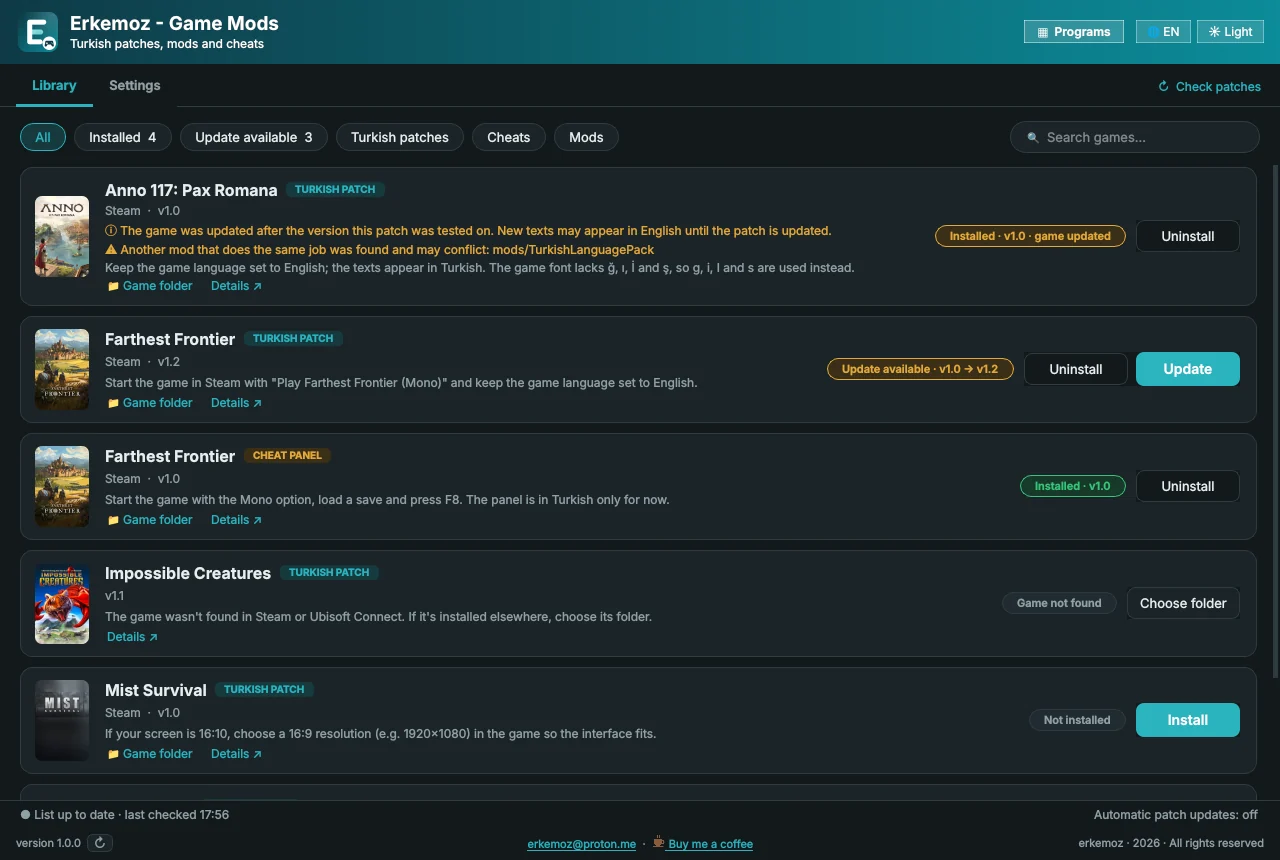
When the program opens, all of erkemoz's patches, mods and cheats are listed with their game covers. It finds the games you have installed in Steam and Ubisoft Connect by itself.
- Filter the list with the pills at the top: “All”, “Installed”, “Update available”, “Turkish patches”, “Cheats”, “Mods”. You can also type a game's name into the “Search games…” box on the right.
- The badge on the right of each card shows its status: “Not installed”, “Installed”, “Update available”, “Game not found”, or that the game has been updated.
- “Game folder” under the card opens the game's folder; “Details” opens the package's page on erkemoz.app.
- The list refreshes every time the program starts. To refresh it yourself, click “Check patches” at the top right. Without internet, the last saved list is shown.
Installing and removing
- Click “Install” on the game's card. The package is downloaded, its fingerprint (SHA-256) is verified and it's installed into the game folder. Close the game first if it's running.
- Some patches (e.g. Impossible Creatures) come with their own installer. Windows asks for administrator permission; follow the steps once the setup window opens.
- To remove a package, click “Uninstall” and confirm. Game files backed up during installation are put back.
- If another mod that does the same job is found (e.g. another Turkish patch), you'll see a conflict warning on the card. Remove the old one so they don't clash.
Updates and game updates
- When a new version of a package is out, its card shows an “Update available” badge and an “Update” button.
- If “Install new patch versions automatically” is on in Settings, new versions install without you doing anything; the bottom bar shows “Automatic patch updates: on”.
- When Steam updates a game, a patch that could crash it is set aside and the card shows “Game updated, patch set aside”. Once a compatible version is out, the patch is reinstalled automatically.
- If the update only brings new texts, the patch stays in place; the card notes that new texts may appear in English until the patch is updated.
- For a patch to be set aside before you launch the game, the program has to run in the background: in Settings, turn on “Keep running in the notification area when the window is closed”.
Settings
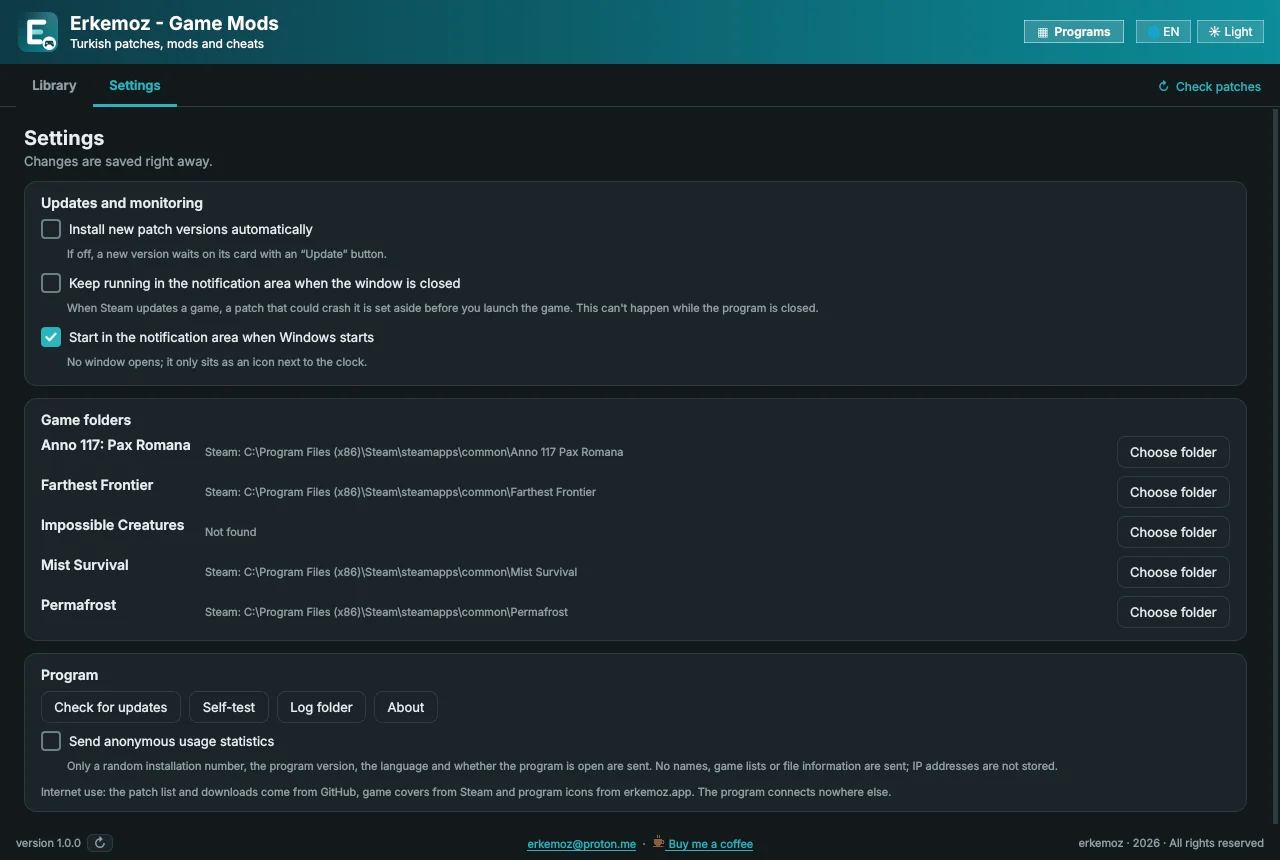
- The “Updates and monitoring” section holds automatic updates, running in the notification area and “Start in the notification area when Windows starts”. Changes are saved right away.
- The “Game folders” section shows where each game was found. If a game is installed somewhere else, point to its main folder with “Choose folder”; the program checks that the folder belongs to that game.
- The “Program” section has the “Check for updates”, “Self-test”, “Log folder” and “About” buttons. You also turn anonymous usage statistics on or off here.
- Change the interface language and the light/dark theme with the buttons in the top bar.
Other erkemoz programs
- Click “Programs” in the top bar to see the other free erkemoz programs.
- “Download and install” downloads a program and starts its setup; “Open its page” opens the program's page on erkemoz.app. The installer is downloaded from GitHub and never run unless its fingerprint (SHA-256) checks out.
Frequently asked questions
The program can't find my game.
The program can't find games installed outside Steam and Ubisoft Connect by itself. Click “Choose folder” on the card (or Settings → “Game folders” → “Choose folder”) and select the game's main folder.
I get “Couldn't write to the game folder”.
The game is most likely running. Close it and try again.
Why was a patch removed by itself?
The game was updated and the patch hasn't been tested with the new version. To keep the game from crashing, the patch was set aside; it's reinstalled automatically once a compatible version is out. The game's card shows the status.
What does the program send over the internet?
The patch list and downloads come from GitHub, game covers from Steam and program icons from erkemoz.app; the program connects nowhere else. If anonymous usage statistics are on, only a random installation number, the program version, the language and whether the program is open are sent; IP addresses are not stored. You can turn statistics off in Settings.
Are the downloaded packages safe?
Every package is downloaded from GitHub and checked against the fingerprint (SHA-256) in the list; if it doesn't match, it isn't installed. A package that tries to write outside the game folder is rejected.
How is this different from downloading patches one by one from the site?
Patches you download from the site don't update by themselves; you have to check their pages for new versions. Game Mods installs new versions and sets an incompatible patch aside when a game updates.
What if a game updates while the program is closed?
The program checks everything the next time it starts and does what's needed. If you want a patch set aside before you launch the game, turn on running in the notification area and “Start in the notification area when Windows starts”.

Find the tools useful?
They're free and will stay free. If one saved you some time, you can buy me a coffee — it helps keep new programs coming.